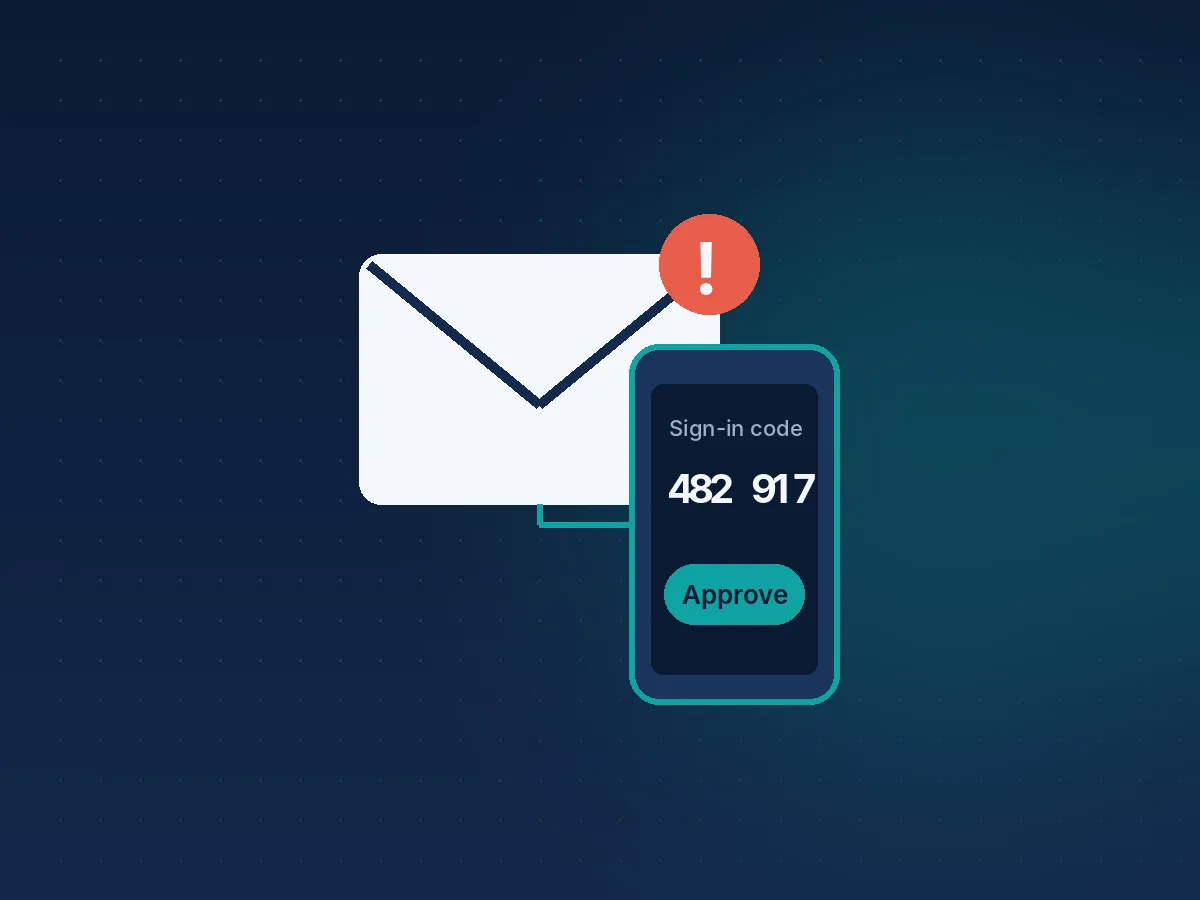
If you're the person at your charity who "looks after the computers", this guide is for you. In about an hour you can find out whether your charity's email addresses have turned up in known data breaches, fix any exposed passwords, and switch on multi-factor authentication (MFA), the single control that stops most stolen passwords being used.
It matters. The government's latest Cyber Security Breaches Survey found that 28% of charities had a breach or attack in the past year, with phishing the most common type. Yet only 38% of charities use two-factor authentication. Since 27 April 2026, Cyber Essentials also fails any organisation that leaves MFA switched off on a cloud service that offers it.
We've kept this neutral: the steps cover Microsoft 365 and Google Workspace because those are the two most common, but use whichever your charity already has.
Before you start
- Admin access to your email system (Microsoft 365 or Google Workspace)
- A list of every charity email address, including shared ones such as info@ or donations@
- A mobile phone for each person, to receive sign-in codes or approve sign-ins
- A quiet day, and a short note to staff and volunteers explaining what will change
Step 1: List every online account your charity uses
You can't protect an account you've forgotten about. Under Cyber Essentials, every cloud service that holds charity data is in scope, not just email. Charities typically use:
- Email, documents and file storage
- Online banking
- The donor or supporter database (CRM)
- Online donation and fundraising platforms
- Newsletter and email marketing tools
- Social media accounts
- The website, its hosting and the domain registrar (where your web address is registered)
- Payroll, accounting and HR systems
- Video calling and messaging apps
Write down who has access to each one and whether MFA is already on. You'll use this list again in Step 5.
Step 2: Check your addresses on Have I Been Pwned
Have I Been Pwned is a free, long-running service that tells you whether an email address appears in a known data breach.
- Go to haveibeenpwned.com and type in one of your charity's email addresses.
- If it lists breaches, read which ones and when. The address, and often a password, is likely to be in criminal hands.
- A clean result is good news, but not proof of safety. Many breaches are never made public.
To check every address at once, use the domain search. Sign in to the HIBP dashboard, add your charity's domain (for example, yourcharity.org.uk) and prove you control it. You can do this by clicking a link sent to a standard address such as admin@ or webmaster@, or by adding a DNS TXT record, a meta tag or a small file to your website. Searches of smaller domains are usually free; larger domains need a paid subscription, so check the current pricing first.
Two more free HIBP tools worth using:
- Notify Me: sends an alert if an address appears in a future breach.
- Pwned Passwords: checks whether a password has appeared in a breach. HIBP anonymises the password before it is checked, so it is never sent in full.
Step 3: Change exposed passwords, and anywhere they were reused
For every address that showed up in Step 2:
- Change the password on that account straight away.
- Change it anywhere else the same password was used. Reused passwords are how one old breach becomes a new problem.
- Use a long, unique password for each account. The NCSC suggests three random words joined together.
- Use a password manager so nobody has to remember them. Most web browsers include one.
Step 4: Switch on MFA for your email
Email comes first, because whoever controls your email can reset almost every other password.
Microsoft 365: switch on security defaults (free in every Microsoft 365 plan, including the free charity plan)
- Sign in to the Microsoft Entra admin centre as an administrator (at least Conditional Access Administrator).
- Go to Entra ID, then Overview, then Properties.
- Select Manage security defaults.
- Set Security defaults to Enabled, then Save.
- Each person is then asked to register for MFA, usually with an authenticator app, the next time they sign in.
If the option is greyed out, your tenant probably uses Conditional Access policies instead, often set up by an IT provider. Ask whoever set them up to confirm MFA covers every user. Microsoft's own guide is Security defaults in Microsoft Entra ID.
Google Workspace: switch on and enforce 2-Step Verification
- Sign in to the Google Admin console as a super administrator.
- Go to Menu, then Security, then Authentication, then 2-step verification.
- Tick Allow users to turn on 2-Step Verification and save.
- Ask everyone to enrol: in their Google Account, Security, then 2-Step Verification.
- Once everyone has enrolled, set Enforcement to On. You can pick a future date so people get reminders first.
Google's guide is Deploy 2-Step Verification.
Two tips for either system: keep a second administrator account (protected with MFA) so you can't lock yourself out, and print and lock away the backup codes for admin accounts.
Step 5: Switch on MFA everywhere else on your list
Go back to your Step 1 list. In most services the setting is under Settings or Security, and may be called two-step verification, 2FA or login approvals. Start with the accounts that hold money or control other accounts:
- Online banking
- The domain registrar and website hosting
- Donation and fundraising platforms
- The donor database
- Social media accounts
Where several people share one login (common with social media), give each person their own account if the service allows it. It makes MFA work properly and lets you remove someone's access cleanly when they leave.
Under Cyber Essentials, if any cloud service offers MFA and you haven't switched it on, the assessment fails automatically. Your Step 1 list is the easiest way to prove you've covered everything.
Step 6: Sign up for free warnings from the NCSC
- Check your cyber security: free checks of your email security, website and browser. No registration needed.
- Early Warning: free email alerts if the NCSC sees signs of attack or a vulnerability linked to your domain or IP address.
- Forward suspicious emails to report@phishing.gov.uk and suspicious texts to 7726.
Free resources for small charities
- Have I Been Pwned: checks whether an email address appears in a known data breach.
- NCSC Cyber Action Toolkit: free, bite-sized actions for small organisations, with progress tracking.
- NCSC Check your cyber security: instant checks of email security, website and browser.
- NCSC Early Warning: free alerts about threats to your network.
- NCSC staff training: free online training, under 30 minutes.
- NCSC Exercise in a Box: practise your response to a cyber attack.
- Charity Commission: Protect your charity from cyber crime: trustees' responsibilities and how to report.
- Report Fraud: report cyber crime and fraud in England, Wales and Northern Ireland. 24/7 helpline for live attacks: 0300 123 2040. In Scotland, call Police Scotland on 101.
Where Cyber Essentials fits
Once MFA is on everywhere, you've done the work behind one of the most common reasons charities fail Cyber Essentials. The certificate shows donors, funders and commissioners that you've got the basics right, and eligible charities that certify the whole organisation can opt in to £25,000 of cyber liability insurance, arranged by IASME.
If your charity is registered and turns over less than £2 million, our Charity Special Offer gives you our Supported Service free: you pay only the Marking Only fee, and your assessor checks your answers before anything is submitted. Or book a free scoping call to talk it through.
Sources
- Cyber security breaches survey 2025/2026, DSIT, 30 April 2026
- Cyber Essentials: Requirements for IT Infrastructure, NCSC (v3.3, Danzell, from 27 April 2026)
- Have I Been Pwned FAQs
- Security defaults in Microsoft Entra ID, Microsoft Learn
- Deploy 2-Step Verification, Google Workspace Admin Help
- Protect your charity from cyber crime, Charity Commission
- Cyber Liability Insurance, IASME